Ẩn Module VBA trong file Excel và tạo Project is unviewable
(Hide module and create Project is unviewable)https://youtu.be/Hr4oi4rayHs
Download tool: https://www.fshare.vn/file/7PQC7OKIJWOD
Ẩn Module VBA trong file Excel và tạo Project is unviewable
(Hide module and create Project is unviewable)I want to know how to crack a password of VBA project in Excel. Who can help?
Before you even lookup for methods to crack the VBA password in Excel, you need to understand the meaning of VBA. VBA is an acronym for Visual Basic for Application. It is used by various MS applications, especially MS Excel, to add some functions and also to assist in automating routine tasks. Due to its nature and need for file security, most users encrypt VBA prohects with passwords. However, humans are not flawless, and VBA passwords can be forgotten. The obvious implication is that you cannot access your Excel VBA codes or edit them. To beat this mayhem, you need a way to crack an Excel VBA password. Fortunately, there are plenty of ways to perform this task. In this article, you shall receive a detailed guide on the top 4 methods to crack Excel VBA passwords.
Part 1: How to Crack Excel VBA Password Manually (3 Methods)
Part 2: Limitations of Manual Methods
Part 3: How to Crack Excel VBA Password Automatically (Easy Method)
Cracking Excel VBA password can be performed with the help of automatic VBA crack software or via manual means. Digging into how to crack the Excel VBA password manually, there are several good ways capable of doing the job. You can choose from these options and try with your protected Excel file. Eventually, one of these options could prove better, depending on the nature of your protected document and the need at hand. Before leveraging these manual methods, you must take a backup of your Excel files.
Method 1. Change File Extension to Crack Excel VBA Password
Method 2. Crack Excel VBA Project Password with Hex Editor
Method 3. Crack Excel Macro Password with Visual Basic Editor
This method involves changing the .xlsm file extension into another format then reverting it into. xlsm format afterward. Although the process is lengthy, you can follow it keenly to crack your excel VBA password eventually. The following steps illustrate how you can crack the Excel VBA project password by simply changing the file extension.
Step 1: Locate your target .xlsm file and change the file extension from. xlsm to .zip.
Step 2: Now open this file via any of the Archiver programs that you have. You can use WinRAR or 7-Zip. If you do so, you should be able to see the following structure of your file directory.
Step 3: Navigate into the XL directory option and extract the file labeled "VBAProject.bin".

Step 4: Open the VBAProject.bin file via any hex editor and query the "DPB=" text within the file in the hex editor.
Step 5: Once you locate this text, simply delete and replace it with "DPX=" instead. Now save and close your file on the hex editor. Overwrite the old VBAProject.bin with the new hex-edited VBAProject.bin.

Step 6: Revert the file extension to .xlsm then open it in Excel. From the pop-up warning window, select "Yes" and ignore the other options.
Step 7: Run the VBA editor and choose "OK" if the dialog box pops up.
Step 8: Right-click on the name of your VBA project then choose properties. Choose the "Protection" tab and get rid of the existing passwords. Also, disable the "Lock Project for viewing" box and enable it again. Enter a suitable password and confirm it. Click "OK" to effect the changes.
Hex Editor provides you with a good platform to edit hexadecimal goods and finally crack an Excel VBA password. In this method, you will create a dummy xls file, set a password, and use it to access the protected Excel.
Step 1: Use the Hex editor to create a new Excel file (xls). Just a simple file can do.
Step 2: Create a password for this file under the VBA section. You can press Alt+F11 to access this option.
Step 3: After you have created a memorable password, save this new file and exit.
Step 4: Open this newly created file, but this time round, open it via the hex editor. Once opened, locate and copy the lines, which begin with the following keys: CMG=, DPB=, and GC=.
CMG="9C9E30D6507654765472587258"
DPB="383A94FBB1FBB1044FFCB11EE8D969D47E2836B34BEECE54EA9E1B3B01082DDB0BA7FB1D"
GC="D4D6781E88BB89BB89BB"

Step 5: Now open the excel file that you wanted to decrypt the password using Hex editor. Paste the copied texts into respective fields and save the changes. Exit the file.
Step 6: Normally open the Excel file and use the very same password you created for the dummy xls file to see the VBA code.
Unlike the Hex editor, Visual Basic Editor allows users to edit character codes as opposed to hexadecimal. The process is not so lengthy. However, you need to be keen because codes require attention to avoid mess-ups. The following steps clearly illustrate how you can crack an excel Macro password with Visual Basic Editor.
Step 1: Manually open the respective workbook housing the protected excel sheet.
Step 2: Now open the Visual Basic Editor via the Alt+F11 command. Go into the Insert-Module then paste the following code into the code window available on the right hand.
Sub PasswordBreaker()
'Breaks worksheet password protection.
Dim i As Integer, j As Integer, k As Integer
Dim l As Integer, m As Integer, n As Integer
Dim i1 As Integer, i2 As Integer, i3 As Integer
Dim i4 As Integer, i5 As Integer, i6 As Integer
On Error Resume Next
For i = 65 To 66: For j = 65 To 66: For k = 65 To 66
For l = 65 To 66: For m = 65 To 66: For i1 = 65 To 66
For i2 = 65 To 66: For i3 = 65 To 66: For i4 = 65 To 66
For i5 = 65 To 66: For i6 = 65 To 66: For n = 32 To 126
ActiveSheet.Unprotect Chr(i) & Chr(j) & Chr(k) & _
Chr(l) & Chr(m) & Chr(i1) & Chr(i2) & Chr(i3) & _
Chr(i4) & Chr(i5) & Chr(i6) & Chr(n)
If ActiveSheet.ProtectContents = False Then
MsgBox "One usable password is " & Chr(i) & Chr(j) & _
Chr(k) & Chr(l) & Chr(m) & Chr(i1) & Chr(i2) & _
Chr(i3) & Chr(i4) & Chr(i5) & Chr(i6) & Chr(n)
Activeworkbook.Sheet(l).Select
Range("al).FormulaR1C1 = Chr(i) & Chr(j) & _
Chr(k) & Chr(l) & Chr(m) & Chr(i1) & Chr(i2) & _
Chr(i3) & Chr(i4) & Chr(i5) & Chr(i6) & Chr(n)
Exit Sub
End If
Next: Next: Next: Next: Next: Next
Next: Next: Next: Next: Next: Next
End Sub

Step 3: Exit the VBA Editor window and proceed to the protected worksheet.
Step 4: Go to Tools>Macro>Macros. From the displayed list, double-click on the "PasswordBreaker" option. You should now be able to access your password-protected Excel file.
Although manual methods are useful in cracking Excel VBA passwords, they are not close to perfect. These methods are plagued by multiple problems that make them not fit when dealing with important and complicated Excel files. The following are some of the common limitations of manual methods.
Require technical knowledge: As you have seen, most options above involves a lot of codes. So if you have the poor technical knowledge, be certain to ride it rough with these manual options.
Time-consuming: Plenty of manual methods involves lengthy processes. The fact that it also involves codes and movement across multiple platforms makes it more tiresome, and thus, users will find it time-consuming and tiresome.
Success rate: What matters, in the end, is whether we can crack the Excel VBA password or not. Unfortunately, these manual options register the lowest success rates. Therefore, it is not wise to spend much time and energy then fail to get the result you needed.
With that said, if all the options fail or get fed up with their shortcomings, later try to use special applications like Passper for Excel to crack Excel VBA password automatically.
Passper for Excel is an incredibly powerful password unlocker tool for Excel files. This program has the highest success rate in the market for cracking Excel VBA project passwords.. With the super-fast cracking speed and ease of use, there is no reason to doubt the ability of Passper for Excel. It is also important to note that Passper for Excel can be used to crack document opening password for Excel files.
Main features of Passper for Excel:
All editing and formatting restrictions on your VBA project, worksheet or workbook can be cracked instantly.
With Passper for Excel, 1 simple click will enable you to get rid of password protection on your VBA project.
Your data won't be affected or damaged after using the program.
The program has a very broad compatibility. All Excel file types including .xlsm, .xlsb, .xltx, .xltm are supported by it.
Passper for Excel has served millions of users all over the world. And it has received positive reviews from its users. Don't hesitate to try it now.

How to Crack Excel VBA Password with Passper for Excel
Step 1 Run Passper for Excel on your PC and click the "Remove Restrictions" option.

Step 2 On the new window, click on the "Select a File" button and follow the on-screen instructions to upload the Excel VBA password protected file into the program's interface.

Step 3 When the password-protected file is uploaded, hit the "Remove" option to get rid of the VBA project password on your Excel file.

The program will automatically get rid of restrictions in a matter of seconds. When it is complete, you should see the success notification on the screen background.
This guide has elaborated with clarity some of the plausible methods to crack Excel VBA passwords. However, some ways are more superior to others due to their ability to handle complex VBA passwords, ease of use, and success rates posted. From the wealth of information given above, no one can dispute Passper for Excel as the real solution to crack Excel VBA project password. All measurement parameters put it levels ahead of manual options. Choose Passper for Excel and fix your VBA password issues for good.
link: https://passper.imyfone.com/excel/crack-excel-vba-password/
Nếu muốn các định dạng bên trong file văn bản hay bảng tính luôn giữ nguyên vẹn mà không ai có thể chỉnh sửa được, bạn hãy sử dụng “bộ đôi” DOCtoEXE và XLtoEXE để xử lý các file Word và Excel. Bên cạnh việc tăng cường mức độ bảo mật cho file Word và Excel, hai chương trình này còn có khả năng chuyển đổi các định dạng tương ứng sang file tự chạy (*.exe). 1. DOCtoEXE Chương trình có dung lượng 145KB, tương thích mọi Windows, tải miễn phí tại http://cpap.com.br/orlando/download/DOCtoEXE.exe hay http://tinyurl.com/yoepp3. Trong giao diện chính của chương trình, bạn nhấn vào nút ba chấm và tìm chọn file Word cần chuyển đổi (chẳng hạn 1.doc). Nhấn dấu chọn trước mục Require Password để tạo mật khẩu bảo vệ file, nhấn dấu chọn trước mục Read only nhằm ngăn ngừa việc chỉnh sửa nội dung văn bản này và chọn High (Slow) ở mục AutoCompression để file tự chạy sau khi được xuất xưởng sẽ được nén nhỏ lại. Cuối cùng, bạn nhấn vào nút Convert để chương trình bắt đầu chuyển đổi (nếu đánh dấu ở tùy mục Require Password thì ngay sau đó sẽ có yêu cầu bạn nhập mật khẩu bảo vệ file 2 lần liên tiếp). Xong, bấm OK.
 |
File tự chạy tạo ra sẽ có tên trùng với file nguồn (tức 1.exe), còn file nguồn sau khi bị chuyển đổi sẽ có dạng “Backup of 1.doc”. 2. XLtoEXE Chương trình có dung lượng 145KB, tương thích mọi Windows, tải miễn phí tại http://cpap.com.br/orlando/download/XLtoEXE.exe hay http://tinyurl.com/yss73p. Cách sử dụng XLtoEXE tương tự DOCtoEXE.
 |
Lưu ý: Khi sử dụng 2 chương trình trên chuyển đổi file Word và Excel sang file tự chạy (.exe) không đồng nghĩa với việc máy người nhận không cần cài trình đọc tài liệu của Microsoft nào để xem nội dung file, mà quan trọng là các định dạng, thiết lập, hiệu ứng, font chữ... trong văn bản/bảng tính sẽ được đóng gói luôn vào file tự chạy. Ngoài ra tính năng bảo mật của 2 chương trình cũng mạnh và an toàn hơn rất nhiều so với cách thiết lập mật khẩu có sẵn trong bộ MS Office. Thành Luân (Đồng Nai)
Link bài: http://congnghevadoisong.vn/chuyen-doi-file-word-va-excel-sang-file-tu-chay-d11484.html
Home: https://orlandomvp.org/Index.asp
download: http://orlando.mvps.org/download2/XLtoEXE.zip
Đôi khi lướt các diễn đàn các bạn sẽ tìm được những file excel được viết bằng VBA rất hay!!!Các bạn muốn vô xem code để xem họ viết như thế nào để học hỏi nhưng file lại có pass hoặc bị khóa project.Hôm nay kênh IT Văn Phòng sẽ chia sẻ đến các bạn 2 tool mở pass file Excel VBA có đặt pass
Link download: https://drive.google.com/drive/folders/1YYDF27q5_xXyoMFQqzabwNs2cf69e6Qy

You are probably here because you’ve seen a warning message: Microsoft has blocked macros from running because the source of this file is untrusted. This post provides the background to this message and the steps you should take to enable the file.
During 2022, Microsoft introduced new security into the Windows version of Microsoft Excel to protect users against malicious Excel macros. Due to a significant increase in attempts by hackers to use macros, Microsoft had to take steps to protect users.
It is very difficult to identify VBA code that is legitimate and code which is not. Therefore, the security Microsoft introduced was so wide-reaching that it impacted all Excel users.
Even files with completely safe macros receive the same warning message; therefore, it is not necessarily anything to worry about.
Watch the video
Contents
Macros are a great way to automate Excel; they give us a lot of power to interact with, not just Excel but Windows and other Office applications. Unfortunately, hackers know about this power too, and use files containing macros to distribute malware to PCs and entire networks.
The change introduced by Microsoft automatically blocks all macros in workbooks downloaded from the internet. While it is frustrating to users, it is to ensure online safety, which is of critical importance.
This security change does not just affect Excel; other Office applications are affected too: Access, PowerPoint, Word, and Visio.

Since macros are used to increase productivity by automating Excel, I wanted to let you know how to unblock files. Once they are unblocked, you can use them as usual. This post provides 2 simple ways to unblock macros, so that you don’t receive the Microsoft has blocked macros from running because the source of this file is untrusted message again.
Files downloaded from the internet using the Windows operating system have an attribute added to them, known as the Mark of the Web (MOTW).
Previously, when users opened macro files with the MOTW, a warning appeared that required the user to click Enable Content.

Unfortunately, too many users clicked Enable Content without considering whether the file was safe.
With the new behavior, users see a message: “Microsoft has blocked macros from running because the source of this file is untrusted”. This will be the same message for all macro-enabled files downloaded from the internet; therefore, even safe macros trigger this warning.

Clicking Learn More takes you to a web page detailing the reasons for this message and provides instructions on how to enable the file for use: https://support.microsoft.com/en-gb/topic/a-potentially-dangerous-macro-has-been-blocked-0952faa0-37e7-4316-b61d-5b5ed6024216
The first method is to unblock the file. This requires a few extra clicks. By adding these additional steps, Microsoft hopes users will only enable files they trust.
The steps to unblock a file are as follows:
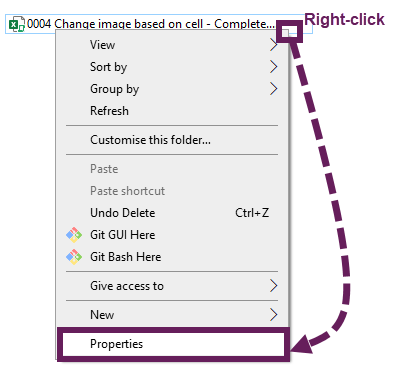
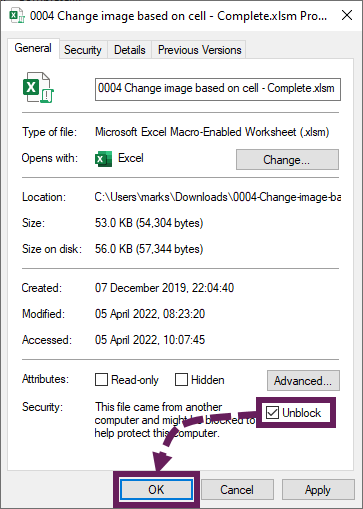
Now the workbook is unblocked, and the macros can run. It is essential to only unblock files from sources that you trust.
That was simple enough; it only required a few additional clicks. However, as we perform this file-by-file, it could become time-consuming for many users. So, next, we look at another method that removes the block for lots of files.
The second method uses a “trusted location”. Any workbooks saved in trusted locations bypass the macro security and are not blocked by default.
To find out which locations are trusted or add new ones, go to File > Options > Trust Center Settings… > Trusted Locations.
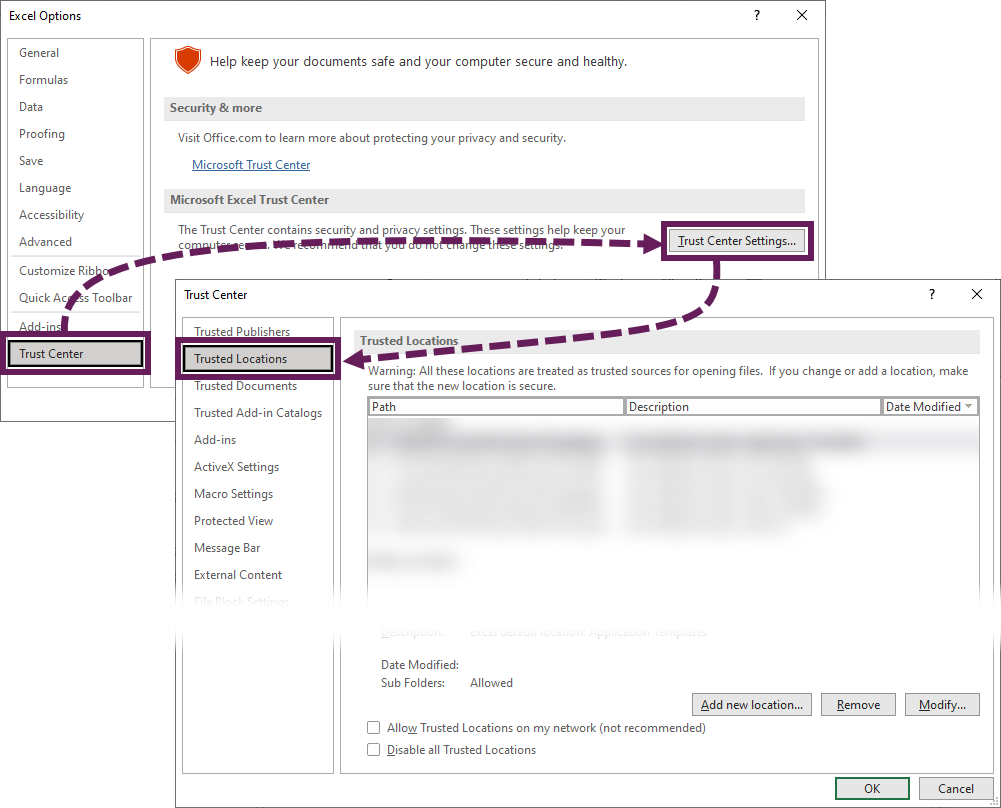
To add a new trusted location, click the Add new location… button and follow the on-screen prompts.
Once set up, trusted locations are easy to use. Just save the file in the trusted folder, and open it as usual. The warning message should not appear, and you can use the file.
Obviously, take care only to save files you trust in a trusted location.
Excel VBA Add-ins behave in the same way as before the security change. It has been necessary to unblock add-ins for several years; therefore, this behavior has not changed.
Online security is critical, so Microsoft has taken steps to help users stay safe. While you may not have the feature that blocks downloaded macros yet, Microsoft indicated that it will roll out this feature to Excel 2013 and later (https://docs.microsoft.com/en-gb/DeployOffice/security/internet-macros-blocked).
At least now, if you receive the Microsoft has blocked macros… warning again, you will know what to do.
Did either method in this post fix your problem? Let us know in the comments. Also, please comment if you have an alternative approach to fix this issue.
Link: https://exceloffthegrid.com/unblock-macros-downloaded-from-the-internet/
Đôi khi trong quá trình sử dụng Excel, chúng ta thường nhận được thông báo có liên kết đến nội dung bên ngoài (external links). Thông thường, chúng ta có thể tùy chọn để cập nhật lại nội dung hoặc xóa bỏ các liên kết này. Tuy nhiên, đôi khi vì lý do nào đó mà việc xóa bỏ các liên kết này (break links) không thể thực hiện được. Bài viết hôm nay mình sẽ chia sẽ một số thủ thuật excel giúp các bạn xóa external link trong Excel.
Các external link chứa trong các cell của Excel có thể dễ dàng loại bỏ bằng thao tác:
Trong tab Data > Edit Links. Trong hộp thoại Edit Links hiện lên, các bạn chọn link cần xóa và nhấn vào nút Break Link. Một hộp thoại hiện ra, bạn nhấn tiếp vào nút Break Links để xác nhận.
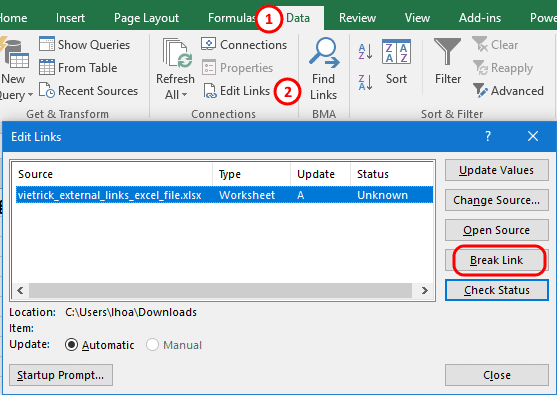
Để nhanh chóng xác định vị trí các Cell chứa external link, các bạn có thể sử dụng tính năng Find and Replace bằng tổ hợp phím Ctrl + F. Sau đó ở ô Find what nhập: [*] để xác định vị trí các Cell.
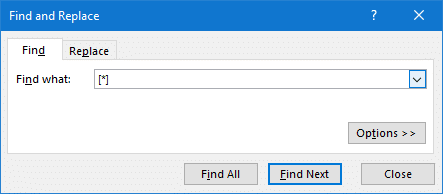
Tuy nhiên đôi khi dữ liệu của bạn được chèn ở nhiều nơi, external link không chỉ nằm trong Cell. Vậy nên sau khi thực hiện, các bạn vẫn thấy liên kết chưa bị loại bỏ. Hãy thử tiếp các phương pháp bên dưới.
External Links có thể tồn tại dưới dạng nội dung bên trong các textbox của Chart. Gồm các vị trí sau:
Các bạn nên kiểm tra dữ liệu tại những vị trí này.
Nếu trong Excel của bạn sử dụng Shape có chứa nội dung textbox. External link có thể nằm trong mục Formula bar.
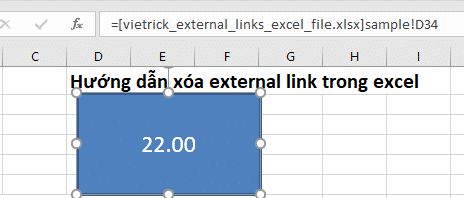
Nếu nội dung có sử dụng nhiều đối tượng Shape, các bạn có thể dùng mẹo sau đây để kiểm tra nhanh:
F5 để mở hộp thoại Go To.Lúc này chúng ta sẽ chọn toàn bộ đối tượng Shape trong bảng tính. Các bạn nhấn nút Tab để chuyển qua các đối tượng Shape khác nhau. Chú ý nội dung ở ô Formula Bar để kiểm tra external link.
Các bạn chuyển qua tab Formulas > Name Manager. Kiểm tra giá trị ổ cột Refers To trong hộp thoại hiện lên.
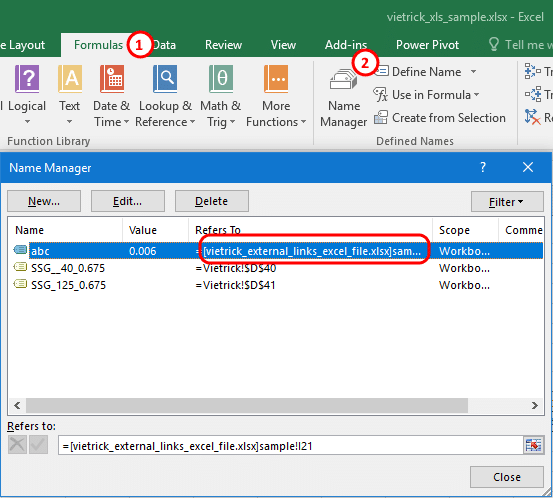
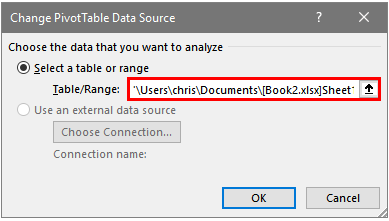
Để kiểm tra dữ liệu trong Pivot Tables, các bạn làm theo các bước hướng dẫn bên dưới:
Các liên kết ngoài cũng có thể chứa trong Data Validation rule trong Excel. Bạn có thể kiểm tra các quy tắc này trong từng worksheet. Tuy nhiên, nếu bạn có nhiều sheet thì hãy làm tận dụng thủ thuật sau để nhanh chóng định vị các external link này.
Sử dụng công cụ The Compatibility Checker để tìm các lỗi Data Validation:
data validation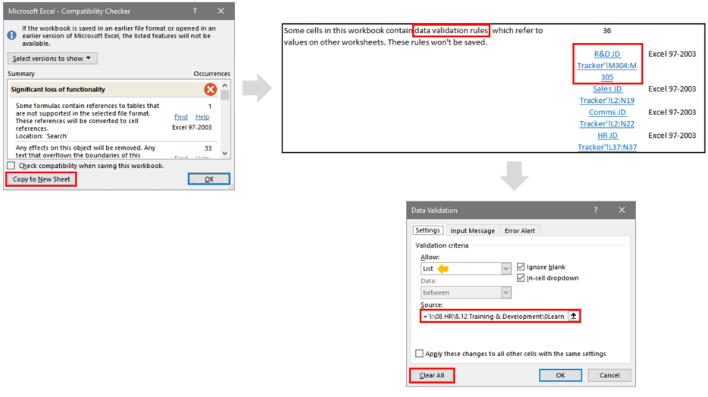
Thực hiện các phương pháp ở trên, việc tìm kiếm và loại bỏ external link gây tốn thời gian thì các bạn có thể sử dụng add-Ins Find Link để tự động tìm và xóa các liên kết. Các bạn có thể tải về phiên bản FindLink 12.1.
Sau khi tải về Add-Ins, các bạn tiến hành cài đặt như hướng dẫn bên dưới:
Cài đặt Add-Ins FindLink excel:
Tiến hành giải nén tệp findlink.zip cho kết quả tệp: findlink.xlam
Để tiến hành thêm Add-Ins vào Excel, các bạn vào tab File > Option. Trong tab Add-Ins, mục Manage chọn Excel Add-ins rồi nhấn Go.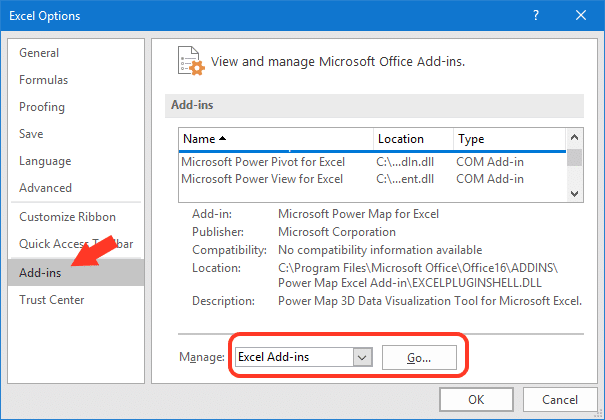
Trong cửa sổ Add-ins mở ra, các bạn nhấn nút Browse và trỏ đến tệp findlink.xlam đã tải về ở bước 1. Sau đó nhấn OK để xác nhận.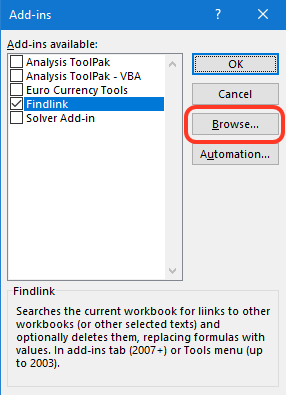
Lúc này, chúng ta đã cài đặt xong Add-ins Find Link cho Excel.
Sau khi cài đặt, để sử dụng add-ins, trên menu Excel, bạn chuyến đến tab Add-ins và nhấn chọn Find Links.
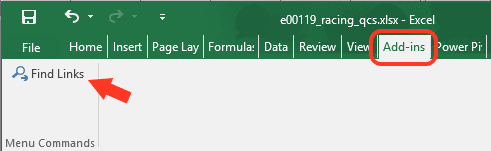
Trong cửa sổ hiện lên, các bạn click chọn liên kết cần xóa bỏ. Sau đó tích vào tùy chọn tương ứng bên dưới rồi nhấn OK.
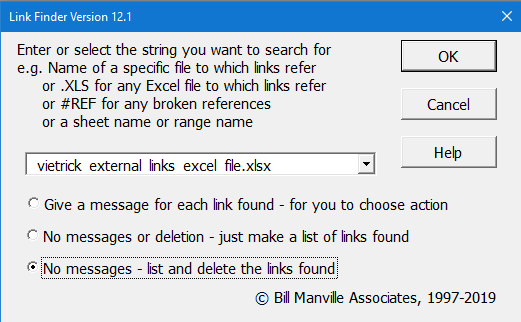
Add-Ins Link Finder cung cấp cho chúng 3 option như sau:
Nếu bạn đã thử tất cả các cách ở trên mà không thành công thì hãy tạo 1 bản sao không chứa external link.
Để thực hiện việc này, các bạn hãy tạo 1 bảng tính Excel mới. Sau đó sao chép nội dung từng sheet từ file cũ sang.
Lưu ý khi sao chép hãy để ý ở tab Data, mục Connections. Nếu nút Edit Links sáng lên có nghĩa là nội dung bạn vừa sao chép có dính external links.
Nếu nội dung bị dính external link, hãy thử xóa Cell style rules. Bạn chuyển qua tab Home > Conditional Formatting > Clear Rules > Clear rules from Entire Sheet.
Sau đó hãy thử sao chép lại nội dung trong sheet qua tệp mới. Lặp lại với các sheet khác nếu dính external links.
Link ref: https://www.vietrick.com/huong-dan-xoa-external-links-trong-excel/